

Description
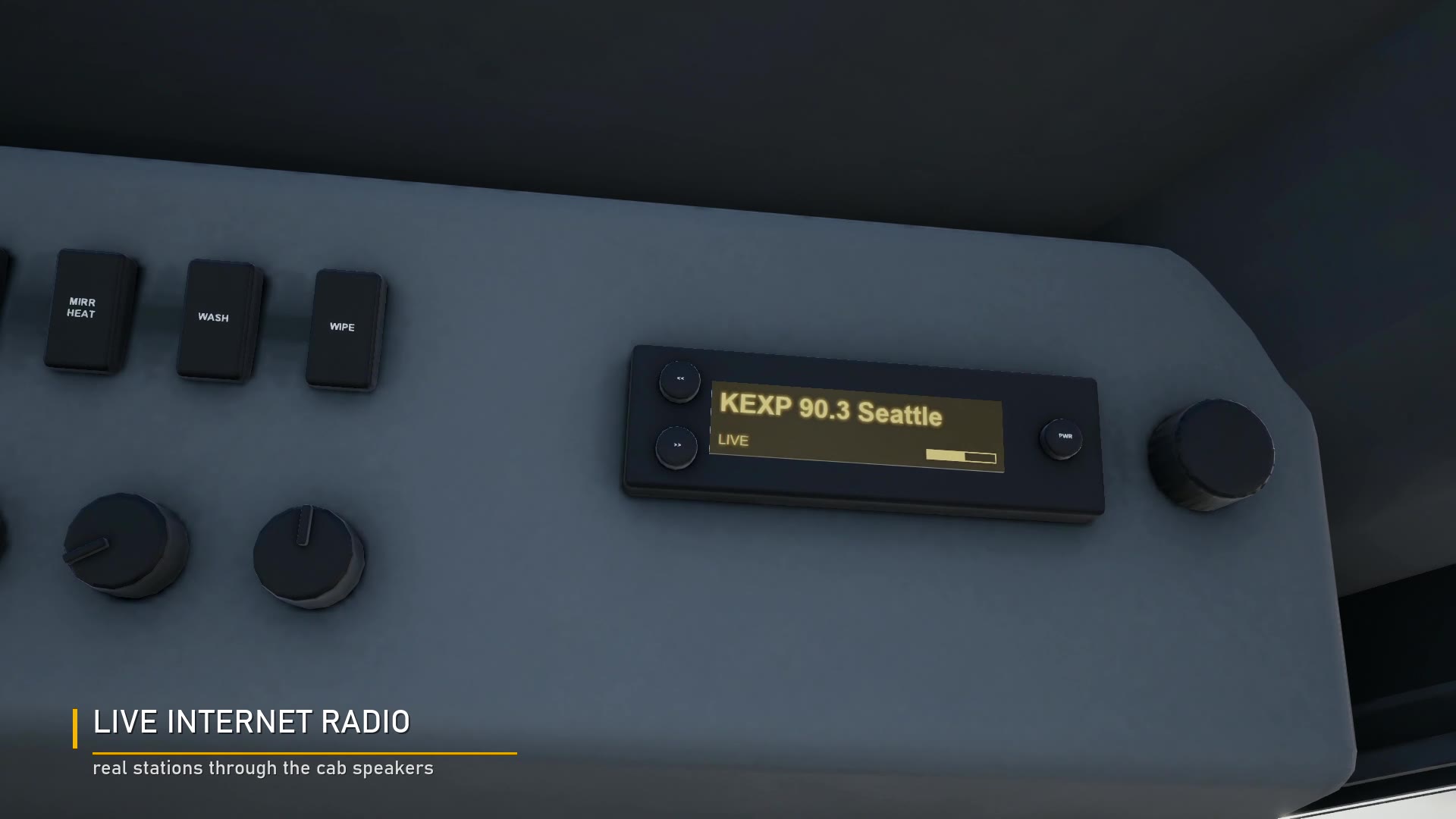
The CAT D11 has a working radio in the overhead panel. Your own music files play on it straight away. For live stations and Spotify you need this little program running next to the game, because BeamNG doesn't let mods reach the internet or other apps' sound.
It sits in the system tray and does nothing else. You set it up once and forget about it.
What it adds to the radio
- LIVE: internet stations through the cab speakers. KEXP 90.3 Seattle, Radio Paradise and four SomaFM channels come set up, and you can add your own
- SPOTIFY: whatever the Spotify desktop app is playing, with the artist and song on the radio display. Skip tracks from the cab. Spotify on your PC goes quiet while it plays so you don't hear it twice
Your own music (MP3, OGG, FLAC and more) works without the relay. Put the files in %LOCALAPPDATA%\BeamNG\BeamNG.drive\current\music.
Setup (about a minute)
1. Unzip the GR8 Radio Relay folder somewhere it can stay, like Documents
2. Double-click GR8RadioRelay.exe. Windows may say "Windows protected your PC" because it isn't signed. Click More info, then Run anyway. The source code (GR8RadioRelay.cs) is included if you want to check it
3. Pick YES to start it with Windows, or NO to get a Steam launch option that starts it with BeamNG
4. Start the game, key on in the D11, Alt+R for the radio and Alt+M to switch to LIVE or SPOTIFY
The full Cab Radio Guide (PDF) is in the zip, with every radio key, display message and fix.
Privacy
It only listens on your own PC (127.0.0.1) and fetches only the station you pick. Nothing is recorded or sent anywhere. It keeps a small log at %LOCALAPPDATA%\GR8RadioRelay\relay.log.
Windows only. Spotify mode needs Windows 11 or an up-to-date Windows 10. You need the CAT D11 to use it: https://grade8modding.com/mods/cat-d11
Changelog
1.0
- First release